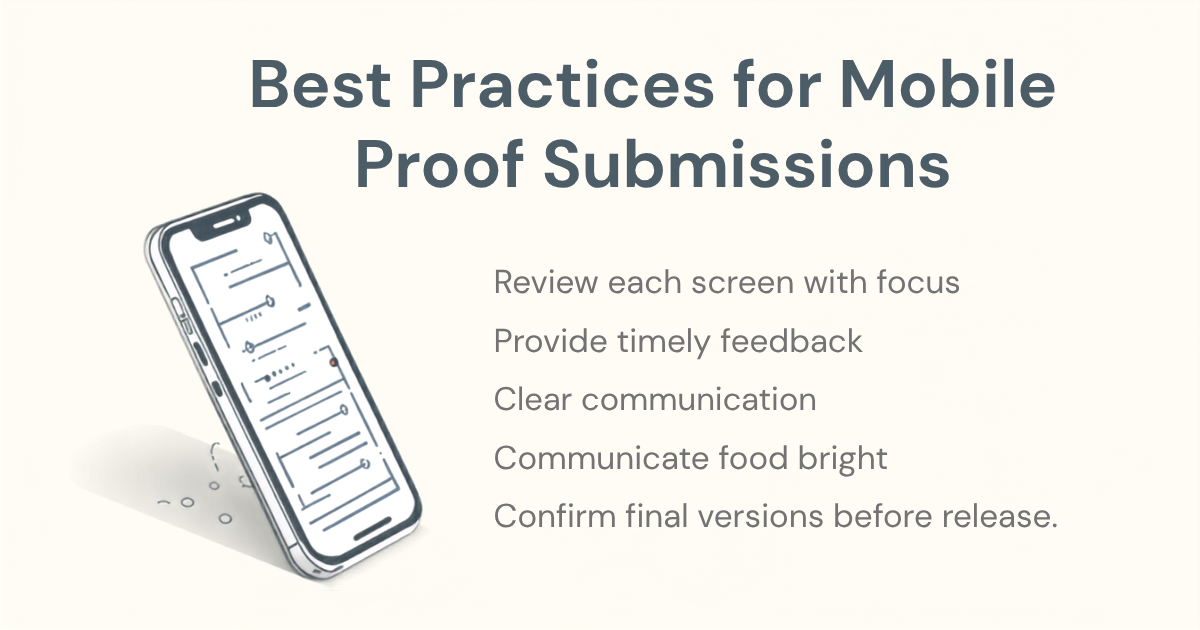
To effectively submit mobile micro job proofs on GainWorkers, workers should prioritize a stable internet connection, ensure clear photo or video quality, maintain accuracy in text entry, and meticulously adhere to all specific task instructions. Utilizing GainWorkers' mobile-friendly interface and understanding the nuances of various proof types-including text, URL, file uploads, or structured template fields-is crucial for successful completion and approval, directly maximizing earning potential and improving a worker's success rate.
The flexibility of completing micro jobs on a mobile device makes earning accessible from almost anywhere. However, this convenience comes with the responsibility of ensuring your proof submissions meet the high standards required by employers and the GainWorkers platform. Whether you are performing a Standard task, a TimeSlot+ (TS+) session, or a Blueprint campaign, your mobile device is a powerful tool for earning if used correctly. This guide will walk you through the essential strategies for mastering mobile proof submissions.
Understanding Mobile-First Task Requirements
Before accepting any task, especially on mobile, it is vital to thoroughly review its requirements. GainWorkers provides detailed descriptions for every task, outlining what is expected and what constitutes valid proof. Mobile workers must pay extra attention to these details.
Previewing Task Details on Mobile
Always take the time to read the full task description. On a smaller screen, it is easy to miss critical instructions or eligibility rules. Look for specific keywords like "screenshot required," "record video," or "exact URL." These details dictate the type of proof you will need to gather.
Different Proof Types and Mobile Implications
- Text Proofs: Often require typing specific information, answers to questions, or summaries. Mobile keyboards can introduce typos, so careful review is essential.
- URL Proofs: Involve copying and pasting a precise web address. Ensure you copy the full, correct URL, not just a partial one, and verify it is accessible.
- File Uploads (Photos/Videos): Common for tasks requiring visual evidence. Mobile devices are excellent for this, but quality, lighting, and file size are critical considerations.
- Structured Template Fields: Used in TS+ and Blueprint jobs, these require filling specific data into predefined fields. Accuracy and completeness are paramount.
Eligibility Rules and Mobile Access
Some tasks have eligibility rules based on region, required success rate, or even the need to pass a qualification exam. Always check these before accepting a slot. While most of GainWorkers' interface is mobile-responsive, ensure your device can handle any specific app downloads or website interactions required by the task itself.
Optimizing Your Mobile Environment for Success
Your mobile device is your primary tool. Preparing it properly can significantly impact your success rate.
Stable Internet Connection
A reliable internet connection is non-negotiable. Slow or intermittent connections can lead to:
- Timeouts during proof submission.
- Inability to load task instructions or external websites.
- Failed file uploads, especially for larger images or videos.
Whenever possible, use a secure Wi-Fi connection over mobile data. If using mobile data, ensure you have a strong signal.
Adequate Battery Life and Device Performance
Ensure your phone is sufficiently charged before starting a task, particularly for TimeSlot+ jobs with a countdown timer. Close unnecessary background applications to free up RAM and CPU resources, which can prevent your device from lagging or crashing during critical submission moments.
Using Native Camera and Screen Recording Tools Effectively
For visual proofs:
- Photos: Use good lighting, hold your phone steady, and ensure the subject is in clear focus. Avoid blurry or dark images. Capture the entire required area without cropping out essential details.
- Screenshots: Know how to take full-screen screenshots on your device. Ensure all relevant information is visible, including timestamps, URLs, or specific text mentioned in the task.
- Videos: If video proof is required, ensure your device has sufficient storage. Record in a well-lit environment, keep the phone steady, and speak clearly if audio is necessary. Check video resolution settings to balance quality with file size.
Managing Storage for File Uploads
Some tasks, especially those requiring multiple image or video proofs, can consume significant storage. Regularly clear your device's cache and delete unnecessary files. Be aware of any file size limits specified in the task instructions, and consider compressing images or videos if needed, though always prioritize clarity.
Crafting Flawless Mobile Proofs: A Step-by-Step Guide
The quality and accuracy of your proof directly impact whether your work is approved. Here is how to ensure your mobile submissions are impeccable.
Text Proofs: Accuracy, Grammar, Formatting
When providing text-based proof, double-check everything. Typos, grammatical errors, or incomplete sentences can lead to rejection. Use your phone's spell-check and grammar-check features, but always perform a manual review. If specific formatting is requested (e.g., bullet points, numbered lists), ensure your mobile entry matches.
URL Proofs: Copy-Pasting Exact Links, Checking Accessibility
For URL proofs, copy the complete URL directly from your browser's address bar. Do not manually type it, as this often leads to errors. After pasting, it is good practice to open the URL in a new browser tab to ensure it leads to the correct page and is publicly accessible. Avoid shortened URLs unless explicitly permitted by the task.
Photo/Video Proofs: Lighting, Focus, Framing, File Size
- Lighting: Natural light is best. Avoid shadows and glare that obscure details.
- Focus: Tap on your screen to ensure the camera focuses on the most important part of your proof.
- Framing: Capture all necessary elements. If a task asks for a specific item, ensure it is centered and clear. For screenshots, include relevant UI elements like the URL bar or timestamps if required.
- File Size: While high quality is good, excessively large files can be difficult to upload. GainWorkers handles various file sizes, but being mindful can prevent delays.
File Uploads: Correct File Types, Naming Conventions
Always verify the required file type (e.g., JPG, PNG, MP4, PDF). Submitting an incorrect file type will result in rejection. If the task specifies a naming convention for your uploaded files, follow it precisely. This helps employers organize and verify submissions efficiently.
Structured Templates (TS+, Blueprint): Filling All Required Fields Accurately
These task types often feature forms with multiple fields. Ensure every mandatory field is completed accurately and truthfully. Incomplete forms are a common reason for rejection. Take your time to review each entry before final submission.
Common Mobile Submission Pitfalls to Avoid
Being aware of these common mistakes can save you time and prevent rejections.
Blurry Images, Incomplete Screenshots
These are among the most frequent reasons for rejection. Always review your captured images and screenshots before submitting. If it is not clear to you, it will not be clear to the employer.
Incorrect URLs or Broken Links
A URL that leads to the wrong page, a 404 error, or a login-protected page is invalid proof. Always test your URLs.
Missing Required Information in Text Fields
If a task asks for three specific pieces of information, providing only two will lead to rejection. Be thorough.
Submitting Duplicate Proofs
Accidentally submitting the same proof for multiple slots or tasks is a serious issue. GainWorkers has systems to detect this, and it can lead to account flags or suspensions. For more information, please review our guide on Preventing Account Flags and Suspensions: A Guide to Avoiding Duplicate Submissions on GainWorkers.
Ignoring Completion Deadlines After Accepting a Slot
Many tasks have a completion deadline after accepting a slot. Failing to submit proof within this window will result in the slot expiring, making you ineligible for payment and potentially impacting your reliability score. Keep an eye on countdown timers for TS+ tasks.
Leveraging GainWorkers Features for Mobile Efficiency
GainWorkers is designed to support a seamless experience for workers. Maximize your mobile efficiency by utilizing platform features.
Dashboard Toggle and Work History
From your dashboard, you can easily switch between Earn mode and Hire mode. In Earn mode, your Work History allows you to track all your submissions, review their status (pending, approved, rejected), and see employer feedback. Regularly checking your Work History helps you understand what types of proofs are being approved or rejected, allowing you to refine your approach.
Filtering Tasks for Mobile Compatibility
When browsing available micro tasks, use the filters for category and estimated finish time to find jobs that are well-suited for mobile completion. While almost all tasks can be done on mobile, some might be more complex or data-intensive, making them better suited for a desktop environment. Look for tasks that align with your device's capabilities and your preferred work style.
Understanding Success Rate and Trust Score Impact
Every approved proof contributes positively to your success rate and trust score. High scores unlock access to premium tasks with higher pay rates and stricter eligibility. Consistent, high-quality mobile proof submissions are key to building these metrics and expanding your earning opportunities on GainWorkers.
Key Takeaways
- Read Carefully: Always review task instructions thoroughly on your mobile device before starting.
- Optimize Your Device: Ensure stable internet, sufficient battery, and clear storage.
- Quality Proofs: Prioritize clear photos, accurate text, and correct URLs.
- Test URLs: Verify all submitted URLs are correct and accessible.
- Avoid Duplicates: Never submit the same proof for different tasks or slots.
- Meet Deadlines: Submit proofs within the completion deadline after accepting a slot.
- Review Work History: Learn from approved and rejected submissions to improve.
By implementing these best practices, you can transform your mobile device into an efficient micro job earning machine on GainWorkers, consistently delivering high-quality proofs and maximizing your gains.
Comments
3 comments